Add the following settings to your Niri configuration file (usually located at ~/.config/niri/config.kdl).
These settings are for general window appearance and functionality.
window-rule {
  // Rounded corners for a modern look.
  geometry-corner-radius 8

  // Clips window contents to the rounded corner boundaries.
  clip-to-geometry true
}

debug {
  // Allows notification actions and window activation from Noctalia.
  honor-xdg-activation-with-invalid-serial
}
Wallpapers setup
Next, choose one of the following options for your wallpaper and overview setup.
Note The “backdrop” in Niri is a layer behind all workspaces that is visible when you trigger the overview mode.
Option 1: Blurred Overview Wallpaper
This minimal configuration allows you to have a blurred and dimmed copy of your wallpaper that appears only in Niri’s overview.
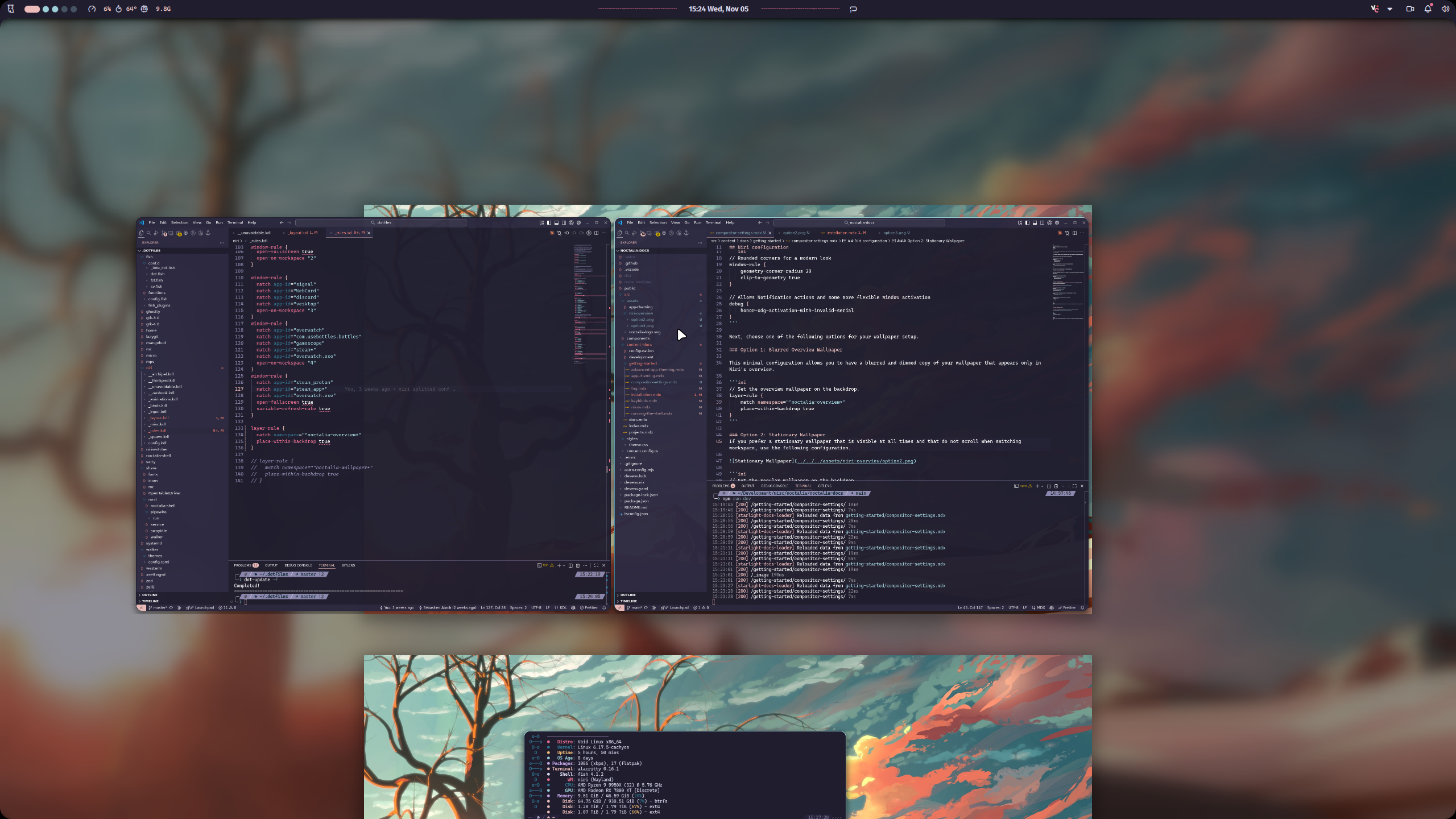
// Set the overview wallpaper on the backdrop.
layer-rule {
  match namespace="^nosdshell-overview(-.*)?$"
  place-within-backdrop true
}
Note Option 1 requires “Enable overview wallpaper” to be turned ON in Noctalia’s settings on the Wallpaper tab. It also uses more memory as it handles an extra wallpaper per monitor.
Option 2: Stationary Wallpaper
If you prefer a stationary wallpaper that is visible at all times and does not scroll when switching workspaces, use the following configuration.
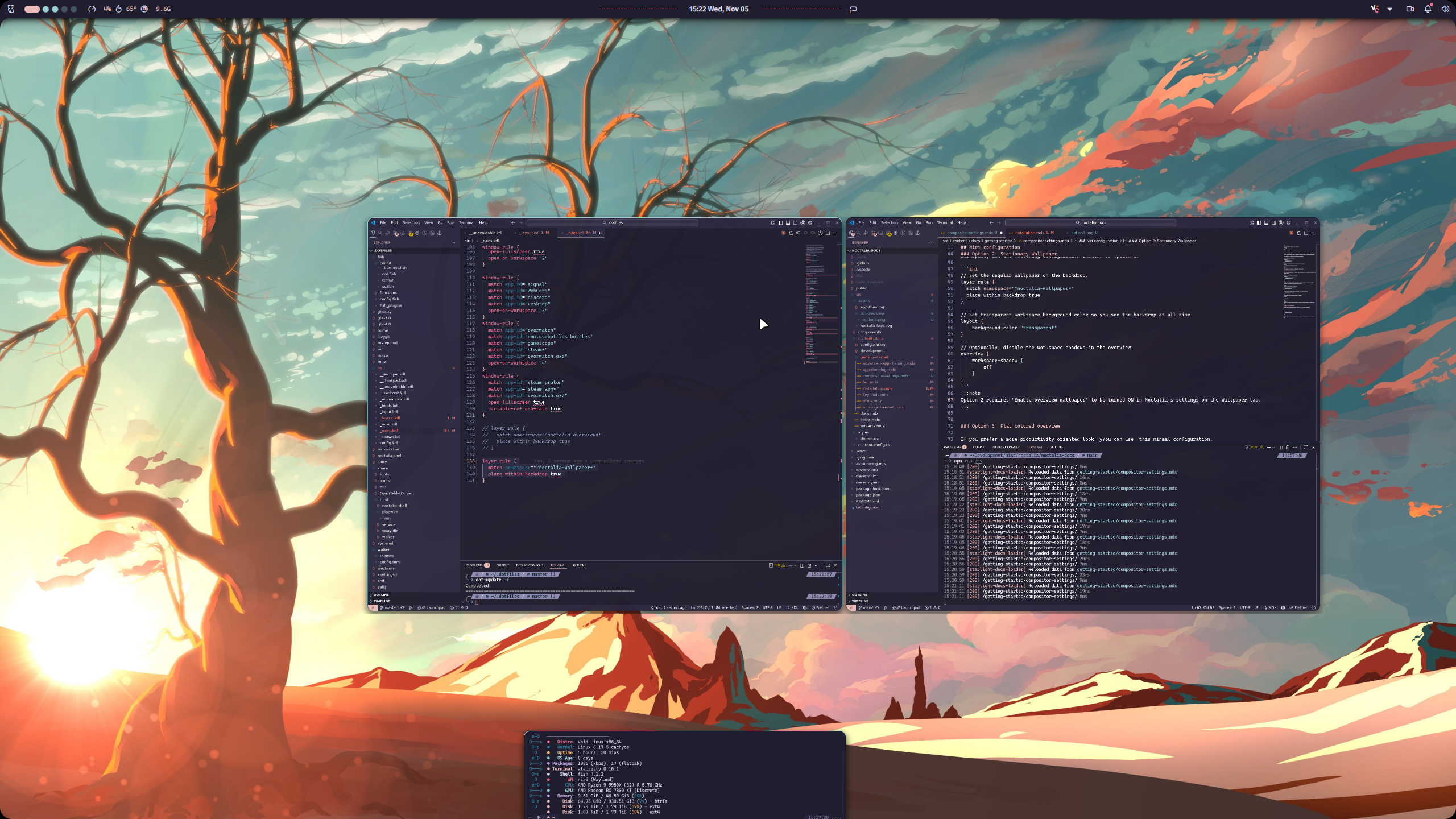
// Set the regular wallpaper on the backdrop.
layer-rule {
  match namespace="^nosdshell-wallpaper(-.*)?$"
  place-within-backdrop true
}

// Set transparent workspace background color so you see the backdrop at all times.
layout {
  background-color "transparent"
}

// Optionally, disable the workspace shadows in the overview.
overview {
  workspace-shadow {
    off
  }
}
Note Option 2 requires “Enable overview wallpaper” to be turned OFF in Noctalia’s settings on the Wallpaper tab.
Option 3: Flat Colored Overview
If you prefer a more productivity-oriented look, you can use this minimal configuration.
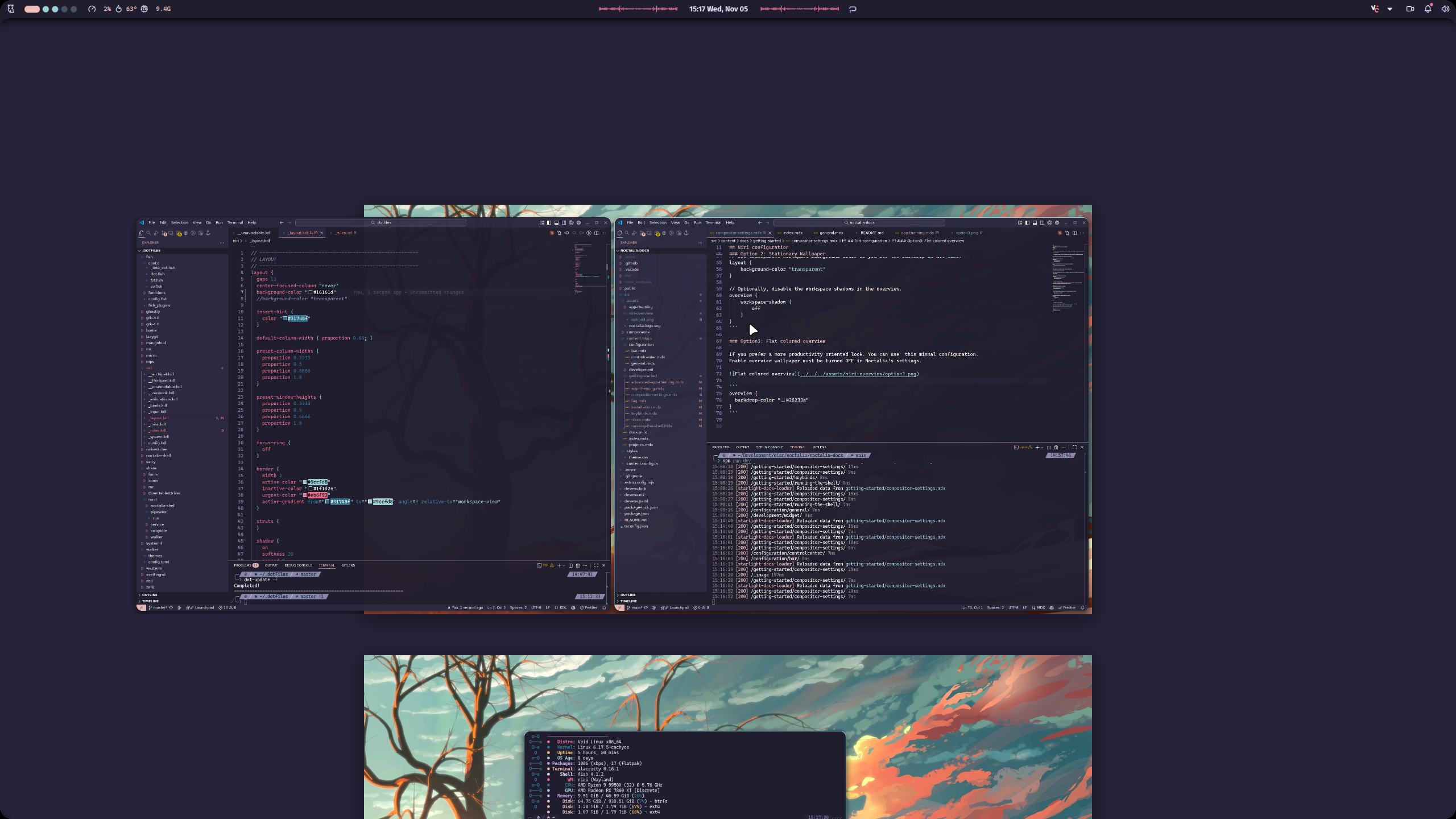
overview {
  // Choose your favorite color.
  backdrop-color "#26233a"
}
Note Option 3 requires “Enable overview wallpaper” to be turned OFF in Noctalia’s settings on the Wallpaper tab.
Blur
Warning Blur support was introduced in Niri version 26.04. Adding these rules to earlier versions of Niri will result in configuration errors.
nosDshell publishes blur regions itself. The rules below choose xray per surface; they do not blur every application window.
/* Do not blur every window. A blanket `blur true; xray false`
   blurs opaque windows too, and it fights "blur only where a
   client publishes a region". nosdshell publishes its own.
   Opt in per translucent app, for example:
window-rule {
  match app-id="^(foot|kitty|Alacritty)$"
  background-effect {
    blur true
    xray false
  }
}
*/

/*
  nosDshell layer rules for niri ≥ 26.04.

  nosdshell publishes its own blur regions via ext-background-effect — niri
  honors them with NO `blur` flag at all, exactly where the shell asks.
  NEVER set `blur true` on a nosdshell *surface* rule: in niri that means
  "blur the surface's whole extent, transparent parts included", and most
  nosdshell surfaces are fullscreen planes — that is the giant-blur bug.
  `blur true` is only safe inside `popups {}`, where the surface is always
  sized to its card.

  Equally, NEVER pin `blur false` on a surface that publishes regions or
  fills translucent masks: `blur false` force-disables even the client's
  own ext-background-effect regions, so a mask fills over sharp content
  (the 2026-10 popupmenu dialog regression). `blur false` is only for
  surfaces that paint no translucent mask at all.

  Three tiers, cheapest first:

    Tier 0  no blur     — surfaces never translucent over meaningful
                          content, or drawing their own backdrop already.
    Tier 1  xray blur   — wallpaper-sampled blur (xray is niri's default
                          for layer surfaces). Right for surfaces whose
                          only backdrop is the wallpaper anyway.
    Tier 2  real blur   — `xray false` on the large region publishers that
                          float over arbitrary windows (background, popupmenu,
                          polkit, mini launcher). Small or short-lived
                          publishers (dock, notifications, toast, osd) stay
                          on xray: the look is nearly the same and non-xray
                          is the dominant compositor cost, and it flashes
                          off during niri open/close animations.

  Canonical copy: nosDshell repo, Scripts/docs/nosdshell-layer-rules.kdl
  (check-layer-namespaces.py keeps it in sync with emitted namespaces).
*/

// Tier 2 — real blur for the large publishers that float over arbitrary
// windows: the bar strip and every open panel (nosdshell-background), the
// popupmenu plane while it hosts a dialog, the polkit auth dialog, and the
// mini launcher. These must sample the real window stack.
layer-rule {
  match namespace="^nosdshell-(background|popupmenu)-.*$"
  match namespace="^nosdshell-polkit$"
  match namespace="^nosd-launcher-mini-.*$"
  background-effect {
    xray false
  }
}

// Small or short-lived publishers. xray (niri's default for layer surfaces)
// samples the wallpaper only; on a dock, toast, OSD or notification that is
// nearly the same picture as non-xray and much cheaper, and it does not
// flash off during niri's open/close animations.
layer-rule {
  match namespace="^nosdshell-(dock|notifications|toast|osd)-.*$"
  background-effect {
    xray true
  }
}

// Tier 1 — wallpaper-sampled blur: the fullscreen launcher wants the
// "blurred wallpaper" look, and desktop widgets at WlrLayer.Bottom only
// ever float over the wallpaper. xray is niri's default for layer surfaces
// once a client region is published; the flag is repeated so this namespace
// is classified (check-layer-namespaces.py) and the choice is documented.
layer-rule {
  match namespace="^nosd-launcher-full-.*$"
  match namespace="^nosdshell-desktop-widgets-.*$"
  background-effect {
    xray true
  }
}

// Menus (TrayMenu, NPopupContextMenu, DockMenu) and tooltips are
// xdg_popups of these layer surfaces. Arrow-shaped popups have transparent
// pixels inside the surface rect (the margins beside the arrow), where a
// whole-surface blur would show through as a stray band — so each
// PopupWindow publishes its opaque body as an ext-background-effect blur
// region (NArrowRect.bodyItem + NSurfaceRegion), and niri follows the
// client region exactly. `blur true` here keeps whole-surface blur as the
// fallback for popups that don't publish a region; `blur false` would
// force-disable even client regions. niri popups are already non-xray, so
// `xray false` here would be a no-op.
layer-rule {
  match namespace="^nosdshell-"
  match namespace="^nosd-launcher-"
  popups {
    background-effect {
      blur true
    }
  }
}

// Tier 0 — never blur, never translucent: wallpaper IS the blur source;
// overview, session menu and the setup wizard draw their own pre-blurred
// backdrop; bar-content reveals background's already-blurred regions (a
// second pass would double it); fade-overlay is a dimming veil, not a
// glass mask; the rest are invisible helpers. Plugin-owned overlays
// (nosdshell:*) are invisible input-capture planes by convention.
layer-rule {
  match namespace="^nosdshell:"
  match namespace="^nosdshell-(wallpaper|overview|bar-content|bar-exclusion|bar-trigger|screen-detector|image-cache-renderer|fade-overlay|session-menu|setup-wizard)(-.*)?$"
  background-effect {
    blur false
  }
}
You can also fine-tune the blur effect globally:
blur {
  passes 2        // more passes = stronger blur (default: 3)
  offset 3.0      // sample distance per pass (default: 3.0)
  noise 0.02      // niri default; 0.03 grains dark glass
  saturation 1.3  // 1.0 looks muddy; 1.5 is niri's default
}
Fine-tuning the blur effect Adjust the blur parameters above alongside these Noctalia transparency settings to achieve your desired look:
- Panel background opacity - Controls panel transparency
- Bar background opacity - Controls bar transparency (optional)
- Translucent widgets - Controls widget transparency within panels